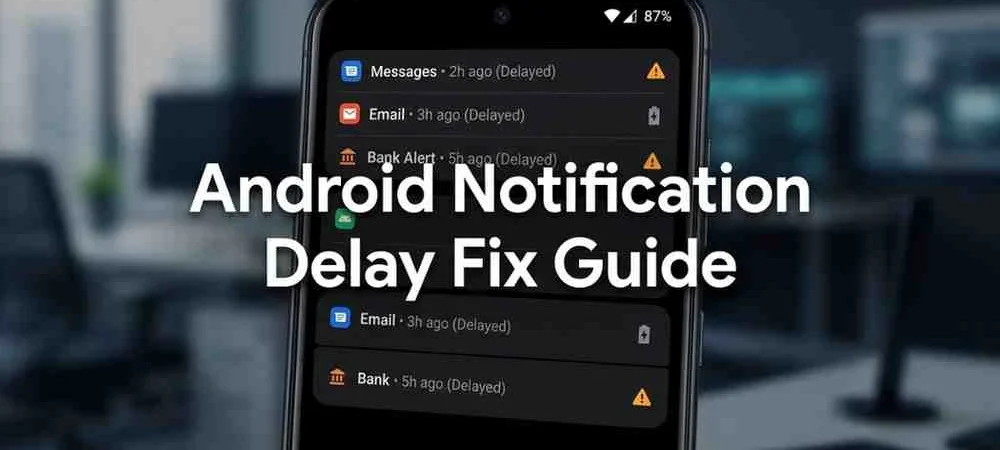
Imagine waiting for a banking OTP that arrives ten minutes late. Or missing a WhatsApp message from your boss because your phone decided to hold notifications hostage. Delayed notifications on Android are one of the most frustrating — and most common — problems users face, and it’s almost never a hardware issue.
The usual culprits are software features quietly working in the background: battery savers, background restrictions, Doze mode, and aggressive optimization that extends battery life at the cost of silencing your alerts. The good news is that every one of these causes has a fix.
This guide covers the causes, proven step-by-step solutions, and per-brand quirks (Samsung, Xiaomi, Pixel, OnePlus) for Android 14, 15, and 16.
1. Battery saver and extreme battery saver
Battery Saver (and Extreme Battery Saver / Ultra battery saver on Android 15 and 16) limits background activity, pauses syncing, and delays push notifications to save power. If it’s on, turn it off first:
Settings → Battery → Battery Saver → turn off.
Many phones enable it automatically below a set battery level, so check the automatic schedule on the same screen even if you never turned it on.
2. Battery optimization and background restrictions
This is the #1 cause of notification delay. Android’s battery optimization system puts apps it considers “unused” to sleep, stopping their background work — including the connection that delivers notifications.
Fix it per app (do this for WhatsApp, Gmail, your banking app, and anything time-sensitive):
- Long-press the app icon → App info → Battery.
- Set it to Unrestricted instead of Optimized or Restricted.
Also check App info → Battery for the Allow background activity toggle — it must be on for push notifications to arrive instantly.
3. Doze mode and app standby
Doze is Android’s deep-sleep system: when the phone sits untouched (screen off, unplugged), it restricts network access and background jobs for all apps, delaying non-priority notifications until the next “maintenance window.”
You can’t disable Doze system-wide — and you shouldn’t. Exempting an app from battery optimization (Fix #2) also exempts it from Doze’s strictest restrictions. That’s the supported path.
4. Data Saver
Data Saver blocks background data for all apps unless explicitly allowed. Since push notifications travel over the network, Data Saver delays them when you’re on mobile data:
Settings → Network & internet → Data Saver → turn off, or keep it on and tap Unrestricted data to whitelist your messaging apps.
5. Do Not Disturb schedules you forgot about
Check Settings → Sound & vibration → Do Not Disturb: automatic schedules (sleep, work hours) can change after updates. Keep your priority contacts and apps in the exceptions list.
6. Force-stopped and sleeping apps
Force-stopping an app kills it completely — notifications won’t arrive until you open it again. On Samsung (One UI), the equivalent is Settings → Battery → Background usage limits: move your messaging and email apps out of Sleeping apps and into Never auto sleeping apps. This single step fixes delayed notifications on most Galaxy phones.
Per-brand quirks
- Xiaomi / Redmi / POCO (HyperOS / MIUI): Xiaomi is the most aggressive of all — set the app to No restrictions (Settings → Battery), enable Autostart (Settings → Apps → Autostart), and lock it in the Recents screen. Skip any of these and the problem half-remains.
- Samsung (One UI): Sleeping apps (above) plus Settings → Battery → Power saving off, and Device care → Battery — don’t let “Auto optimization” restrict your key apps.
- Google Pixel: Adaptive Connectivity (Settings → Network & internet) can hold notifications during network switching — turn it off if alerts lag. Also verify Google Play services is set to Unrestricted battery usage, since push delivery depends on it.
- OnePlus (OxygenOS): Settings → Battery — disable aggressive Doze and app hibernation for your messaging apps.
7. Update the app and the system
An outdated app with a background-task bug is a classic delay source. Update the affected app from Google Play, then check Settings → System → Software update — recent Android 15/16 updates included notification-delivery fixes.
8. Reset app preferences (the clean catch-all)
If you’ve restricted apps over the years and can’t remember which, reset everything without losing data: Settings → System → Reset options → Reset app preferences. This restores default permissions and battery optimization for all apps — you’ll only need to re-apply the restrictions you actually want.
9. Check Google Play services
Push notifications arrive through Firebase Cloud Messaging, which runs on Google Play services. If FCM is broken, nothing arrives on time: clear its cache (Settings → Apps → Google Play services → Storage & cache → Clear cache), set Play services to Unrestricted battery usage, and restart the phone.
Quick diagnostic order
Apply these in order — stop when it’s fixed:
- Turn off Battery Saver and Data Saver.
- Set the affected app to Unrestricted battery usage.
- Allow background data for the app.
- Samsung: remove it from Sleeping apps. Xiaomi: No restrictions + Autostart + lock in Recents.
- Update the app and system, then restart.
Frequently asked questions
Why are my Android notifications delayed?
Almost always battery optimization or background restrictions: Android sleeps the app, so it can’t receive push notifications until the phone wakes it. Exempt the app (Unrestricted battery usage + background data allowed) and the delay usually disappears.
Why are notifications not coming through until I open the app?
The app was force-stopped or put to sleep (Samsung’s Sleeping apps or Xiaomi’s battery restrictions are the usual suspects). Open it once to wake it, then exempt it from optimization.
Why are Samsung notifications delayed?
One UI puts apps into Background usage limits Sleeping/Deep sleeping lists, pausing their background activity. Move your messaging apps to Never auto sleeping apps.
What is Doze mode?
Doze is Android’s built-in deep-sleep system that restricts network access and background jobs when the phone is idle, screen-off, and unplugged. Exempting an app from battery optimization also exempts it from Doze’s strictest delays.
Will disabling battery optimization drain my battery?
Exempting two or three messaging apps has negligible impact. Our battery saving guide shows how to keep battery life while fixing notifications.
Suggested internal links
- How to save battery on Android — the battery/notification trade-off (fixes 2, 4, 8).
- How to find blocked numbers on Android — “I never received the call” scenario: check whether the number was blocked.
- Parental control on Android — family devices where notification restrictions are part of child-safety setups.
- How to hard reset any phone — last resort if notification issues persist after a corrupt update.
- Android backups — before Reset app preferences or deeper fixes.
Publishing notes
- Replace the existing post (dated 2026-05-08, ~3,000 words) with this condensed version; updated for Android 14/15/16, Doze, Data Saver, and per-brand sections (Samsung sleeping apps, Xiaomi autostart, Pixel adaptive connectivity, OnePlus).
- Per-brand menu paths (especially Xiaomi HyperOS and One UI) change frequently — treat the exact wording as best-effort and verify against a current device if available.
- Category: Tutoriales y guías.
- Update the publish date to the republication date.