How to Find Blocked Numbers on Android: Complete Guide (2026)


Introduction

You blocked a number weeks ago during a wave of spam calls — and now you’re not sure if you accidentally blocked a legitimate contact. Or maybe you’re trying to reconnect with someone you blocked months back and can’t remember their number. Whatever the reason, figuring out how to find blocked numbers on Android isn’t as obvious as it should be.

Android doesn’t exactly put a flashing “Blocked Numbers” sign in plain sight. Depending on your device, your version of Android, and which app you’re using, the blocked numbers list can be tucked away in the Phone app, Messages app, Contacts app, or buried inside your dialer settings. The location varies between Samsung, Google Pixel, and other Android manufacturers — which is why so many people end up confused.

In this guide, you’ll learn exactly where blocked numbers are stored on Android, how to find and view your full blocked list, how to unblock a number from any app or device, and how to manage spam calls going forward. Whether you’re on a Samsung Galaxy, a Google Pixel, or any other Android phone, this guide covers it all.


What Are Blocked Numbers on Android?

Before diving into where to find them, it’s worth understanding how Android’s call and message blocking actually works.

When you block a number on Android, you’re telling your phone to silently reject all calls and messages from that contact. Blocked calls don’t ring — they go straight to voicemail (if you have it set up). Blocked text messages are filtered out and don’t appear in your main message thread. In both cases, the blocked person has no idea they’ve been blocked; their calls and messages appear to go through normally on their end.

Android stores blocked numbers in a system-level blocked numbers list, which can be accessed through multiple apps — primarily the Phone app and the Messages app. Some manufacturers, like Samsung, maintain their own additional blocking layer on top of Android’s native system. Google Pixel uses Google’s Phone app, which has its own blocked list tied to your Google account.

It’s important to understand that blocked calls and blocked messages are stored separately. Blocking a number in your Phone app blocks calls; blocking in your Messages app blocks texts. To fully block a contact, you typically need to block them in both places — or use a unified blocking option when available.


Where to Find Blocked Numbers on Android

There are several places your blocked contacts and numbers could be stored, depending on your device and which app you used to block them.

The Phone App

The Phone app (also called the Dialer) is the most common place Android users block incoming calls. The blocked list lives in the app’s settings, not on the main screen — which is why it’s easy to miss.

The Messages App

If you blocked someone from a text conversation, their number is stored in the Messages app’s blocked contacts list. This is separate from the Phone app’s blocked list.

Google Contacts

On some Android configurations, blocked numbers are tied to your Google Contacts account, particularly when you block from the Contacts app directly. These may sync across devices logged into the same Google account.

Samsung One UI Settings

Samsung devices running One UI have both a stock Android blocking list and an additional Samsung-managed call blocking feature accessible through the Phone app settings and the device’s general Settings menu.

Google Phone App (Pixel and Compatible Devices)

Google’s own Phone app, which comes pre-installed on Pixel devices and is available for other Android phones via the Play Store, maintains its own blocked numbers list — as well as spam protection and verified calls features.

find blocked numbers android

How to Find Blocked Numbers on Android: Step-by-Step

Here are the step-by-step instructions for finding your blocked numbers list on the most common Android configurations.

Method 1: Through the Phone App (Stock Android)

This works on most Android phones running near-stock Android — including Pixel devices and many others.

  1. Open the Phone app on your home screen
  2. Tap the three-dot menu (⋮) in the top-right corner
  3. Select Settings
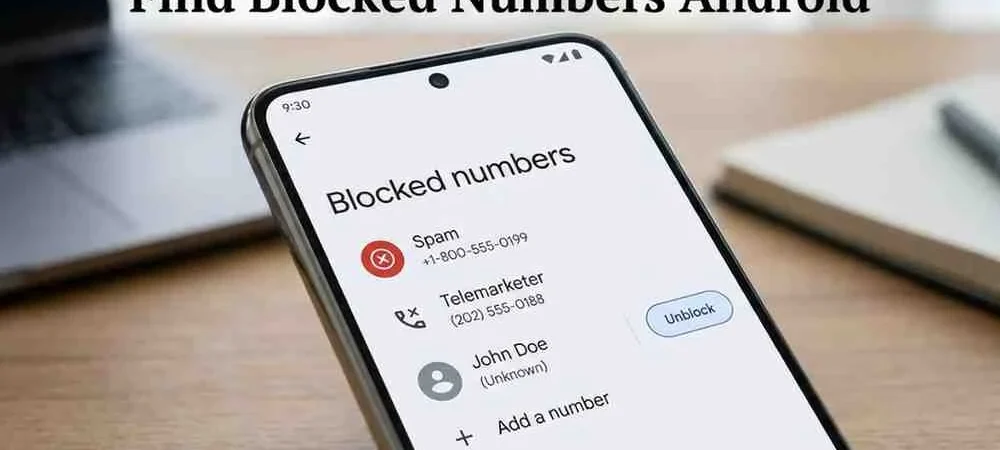
  4. Tap Blocked numbers (sometimes labeled “Call blocking” or “Block list”)
  5. Your full list of blocked numbers appears here

You can see every number you’ve blocked through this app, and you can add or remove numbers from this screen.

Method 2: Through the Messages App

  1. Open the Messages app
  2. Tap the three-dot menu (⋮) in the top-right corner
  3. Select SettingsSpam protection or Block & report spam
  4. Look for Blocked contacts or Blocked numbers

Note: Some versions of Messages show blocked numbers under SettingsBlocked contacts directly.

Method 3: Google Phone App Blocked List (Pixel & Google Phone)

If you use the Google Phone app:

  1. Open the Phone app
  2. Tap the three-dot menuSettings
  3. Tap Blocked numbers
  4. View, add, or remove blocked numbers here

The Google Phone app also has a Spam and Call Screen section where you can see numbers reported as spam even if you haven’t personally blocked them.

Method 4: Through Android Settings (Universal)

Some Android versions allow access to blocked numbers directly through system settings:

  1. Open Settings
  2. Tap AppsPhone (or your dialer app)
  3. Look for Blocked numbers or Call blocking within the app’s settings

Alternatively:

  1. Open SettingsSoundDo Not Disturb → check exception settings here as well, since DND can appear similar to blocking

Method 5: Through Contacts App

  1. Open the Contacts app
  2. Tap the three-dot menuSettings
  3. Look for Blocked numbers or Blocked contacts

Not all versions of the Contacts app show a blocked list here, but it’s worth checking — especially if you blocked someone directly from their contact card.


How to Find Blocked Numbers on Samsung (One UI)

Samsung Galaxy phones running One UI have a slightly different path to the blocked list.

Via the Phone App (Recommended)

  1. Open the Phone app
  2. Tap the three-dot menuSettings
  3. Select Block numbers (sometimes called “Block calls and messages” in newer One UI versions)
  4. Your blocked list appears, showing all numbers blocked via the Phone app

Via Samsung Messages

  1. Open the Messages app
  2. Tap the three-dot menuSettings
  3. Select Block numbers and messages
  4. Tap Block numbers to see your full list

Samsung also maintains a combined blocking list. Numbers blocked in the Phone app may also block messages from that number, depending on your settings under Block calls and messages.

Via Settings App (One UI)

  1. Go to SettingsAppsPhone
  2. Tap into phone-specific settings where available

How to Find Blocked Numbers on Google Pixel

Pixel phones use the Google Phone app, making the process more straightforward.

  1. Open the Phone app
  2. Tap the three-dot menu (⋮) → Settings
  3. Select Blocked numbers
  4. View all manually blocked numbers

Additionally, for spam protection:

  1. In the Phone app, go to SettingsSpam and Call Screen
  2. Enable Filter spam calls to see how spam calls are being handled

Pixel’s spam protection is powered by Google’s AI-based caller ID system, which automatically filters suspected robocalls and telemarketers — even numbers you haven’t personally blocked.

find blocked numbers android

How to Unblock a Number on Android

Once you’ve found your blocked list, removing a number is simple — but the exact steps depend on where you’re doing it.

Unblock from the Phone App (Stock Android / Pixel)

  1. Open the Phone app → three-dot menuSettingsBlocked numbers
  2. Find the number you want to unblock
  3. Tap the X or Remove icon next to the number
  4. Confirm if prompted

The number is immediately unblocked and can call you again.

Unblock from the Messages App

  1. Open MessagesSettingsBlocked contacts
  2. Find the contact or number
  3. Tap Unblock or the remove icon
  4. Confirm

Unblock on Samsung (One UI)

  1. Open the Phone app → SettingsBlock numbers
  2. Find the number in your list
  3. Tap the minus (-) icon or swipe to remove
  4. For messages, open MessagesSettingsBlock numbers and messages → remove from there as well

Unblock from Contacts

  1. Open the Contacts app and find the contact
  2. Tap the contact’s name to open their profile
  3. Tap the three-dot menu → look for Unblock if available

Android Spam Calls and Call Blocking Features

Beyond manually blocking individual numbers, Android has several built-in tools to help you deal with spam calls, robocalls, and telemarketers.

Spam Protection (Google Phone App)

The Google Phone app includes built-in spam protection that identifies and warns you about suspected spam callers. When a spam call comes in, you’ll see a red banner saying “Suspected spam caller” — and you can choose to answer or decline.

To enable or adjust spam protection:

  1. Open the Phone app → SettingsSpam and Call Screen
  2. Toggle Filter spam calls on or off
  3. Adjust how aggressively spam is filtered

Call Screening

Pixel devices also have Google’s Call Screen feature, which lets Google Assistant answer the call for you, transcribe what the caller says in real time, and let you decide whether to pick up — all without giving the caller your attention.

Block Unknown Callers

If you’re getting calls from private or unknown numbers:

  1. Open the Phone app → SettingsBlocked numbers
  2. Toggle Block unknown callers on

This blocks all calls from numbers not in your contacts. Useful for stopping robocalls but be careful — legitimate businesses calling you may be blocked too.

Report Spam

When you receive a spam call, you can report it directly:

  1. After the call appears in your Recent Calls, tap it
  2. Select Block / report spam
  3. Check the box to report it to Google, then tap Block

Reporting helps Google improve its spam detection for all users.


Real-Life Scenarios: When You Need to Find Blocked Numbers

Scenario 1: You Blocked an Ex and Now Want to Reconnect

It happens. You blocked someone during a rough patch, and now you want to reach out again. Open your Phone app → Settings → Blocked numbers, find their number, and unblock them. If you don’t remember their number, check if they’re still in your Contacts app — blocked contacts typically remain in your contacts list even while blocked.

Scenario 2: You Missed Calls from a Business You Contacted

You called your doctor’s office last week and now they keep calling back — but you’re not getting the calls. Check your blocked list. It’s possible you accidentally hit “Block” on their incoming call. Find the number in your blocked list and remove it to restore communication.

Scenario 3: Recovering After a Wave of Spam Calls

After blocking a dozen spam numbers, you want to clean up your blocked list and see if any legitimate numbers got caught in the sweep. Open your blocked numbers list, scroll through, and remove anything that looks like a real business or contact.

Scenario 4: Managing Blocked Callers on a Samsung Galaxy

On a Samsung phone, you might block someone from the Messages app but forget to block them from the Phone app — meaning they can still call you. Check both blocked lists (Phone app and Messages app) to ensure comprehensive blocking across both calls and texts.


Pros & Cons of Blocking Numbers on Android

Pros Cons
Privacy Stops unwanted callers immediately May block legitimate callers by mistake
Spam Control Reduces robocalls and telemarketers Blocked numbers can still leave voicemails
Peace of Mind Prevents harassment from specific numbers Caller is not notified — they may keep trying from new numbers
Easy Management Simple to add/remove from blocked list Blocked list is separate per app (Phone vs Messages)
Built-in Tools Spam protection is free and automatic Some spam still gets through automated filters
Flexibility Block unknown callers with one toggle Blocking unknowns may stop important calls from businesses

Troubleshooting: Common Blocked Number Problems

find blocked numbers android

Blocked Numbers Are Still Calling Me

If a blocked number is still getting through, there are a few explanations. First, they may be calling from a different number — blocking only applies to the specific number you blocked, not to the person. Second, your Phone app and system blocked list may not be in sync. Go to Settings → Blocked numbers and verify the correct number is listed exactly as it appears in your call log.

My Blocked List Is Empty or Missing

If you can’t find a blocked list at all, it may be labeled differently on your device. Try searching “block” in your Settings search bar. On some devices with older Android versions, the blocked list is inside the Dialer app’s advanced settings rather than the main settings menu.

Blocked Contacts Don’t Appear in the List

If you blocked someone from their Contacts profile, the block may be recorded differently than if you blocked them from the Phone app. Check both the Contacts app settings and the Phone app settings to see the complete picture.

Blocked Messages Are Still Visible

If you blocked someone in your Phone app but can still see their texts, remember: call blocking and message blocking are separate. Open your Messages app, find their conversation, tap and hold the thread, and select Block or Block & report spam.

Settings Look Different on Your Phone

Android is heavily customized by manufacturers. If the menu paths above don’t match what you see, use your Settings app’s search bar and search for “blocked numbers” or “block” — this will surface the relevant setting regardless of how your manufacturer has organized the menus.

Can Blocked Numbers Leave Voicemails?

Yes. On most Android phones, a blocked number can still leave a voicemail — their call is silently rejected, but it may be redirected to your voicemail system. The voicemail typically appears in a separate “blocked” section if your carrier supports it, or it may appear in your regular voicemail inbox.


Frequently Asked Questions

How do I find blocked numbers on Android?

Open the Phone app, tap the three-dot menu → SettingsBlocked numbers. This shows all numbers you’ve manually blocked through the Phone app. For blocked messages, check MessagesSettingsBlocked contacts.

Where are blocked numbers stored on Android?

Blocked numbers are stored in your Phone app’s settings and/or your Messages app’s settings, depending on how you blocked them. Samsung maintains a separate blocking system in One UI. On Pixel devices, blocked numbers are stored in the Google Phone app settings.

How do I unblock a number on Android?

Go to Phone appSettingsBlocked numbers, find the number, and tap the X or Remove icon next to it. For Samsung, use PhoneSettingsBlock numbers and tap the minus icon.

How can I see blocked contacts on Android?

Blocked contacts are visible in your Phone app’s blocked numbers list. However, blocking a number doesn’t remove the contact from your Contacts app — you can still find their contact card there with their number.

Can I recover blocked numbers on Android?

Yes. Unblocking a number restores full communication — you can receive calls and messages from that number again. If you’ve forgotten the number, check your Contacts app, call history, or message history (blocked messages may be stored separately in some apps).

Why can’t I see blocked numbers on Android?

Your device may label the blocked list differently. Try searching “block” in your Settings app’s search bar. Also, blocked numbers from the Phone app and Messages app are stored separately, so check both locations.

How do I block spam calls on Android?

Open the Phone app → SettingsSpam and Call Screen → enable Filter spam calls. On Pixel, you can also enable Call Screen to have Google Assistant screen unknown callers automatically.

How do I block unknown callers on Android?

Open the Phone app → SettingsBlocked numbers → toggle on Block unknown callers. This blocks all calls from numbers not saved in your contacts.

How do I check blocked messages on Android?

Open MessagesSettingsSpam protection or Blocked contacts. On Samsung, go to MessagesSettingsBlock numbers and messages to view and manage blocked message senders.

Why are blocked numbers still calling me?

The blocked number may be calling from a different phone number. Blocking only applies to the exact number you blocked. If they’re persistent, consider enabling Block unknown callers or filing a report with your carrier.

Can blocked numbers leave voicemails on Android?

Yes, in most cases. When a blocked number calls, it’s silently declined and may be forwarded to voicemail. Some carriers separate these into a “blocked messages” voicemail folder. To fully prevent voicemails from a number, you may need to contact your carrier.


Conclusion

Finding blocked numbers on Android is straightforward once you know where to look. The blocked numbers list lives in your Phone app settings for calls and your Messages app settings for texts — and on Samsung devices, there’s an additional layer in One UI’s call blocking menu. Google Pixel users have the cleanest experience through the Google Phone app, with built-in spam protection that automatically screens robocalls and telemarketers.

Here’s the quick summary:

  • Phone app → Settings → Blocked numbers (for blocked calls)
  • Messages app → Settings → Blocked contacts (for blocked texts)
  • Samsung: Phone app → Settings → Block numbers + Messages → Settings → Block numbers and messages
  • Pixel: Phone app → Settings → Blocked numbers + Spam and Call Screen settings

Managing your Android blocked contacts list regularly is good practice — it prevents legitimate contacts from being silenced and keeps your spam protection effective. Whether you’re recovering a mistakenly blocked business contact or cleaning up a long list of robocall numbers, now you have everything you need to take full control of your blocked calls and messages.


Did this guide help you find your blocked numbers? Drop a comment with your device model and which method worked for you. If you found this useful, share it with someone else who might be struggling with the same issue — and bookmark it for the next time you need to manage your blocked list.