Introduction
Imagine waiting for a critical banking OTP that arrives 10 minutes late. Or missing a WhatsApp message from your boss because your Android phone decided to hold notifications hostage. Sound familiar? Android notification delay is one of the most frustrating yet surprisingly common problems Android users face — and it’s almost never a hardware issue.
The truth is, Android notification delay is usually caused by software features quietly working in the background: battery savers, data restrictions, app sleeping behaviors, and aggressive optimization settings that were designed to extend battery life but end up silencing your alerts. The good news? Every single one of these causes has a fix.
In this comprehensive guide, you’ll learn exactly what causes delayed notifications on Android, how to diagnose your specific issue, and proven step-by-step solutions that work on Samsung, Google Pixel, OnePlus, and virtually every other Android device. By the end, your notifications will be arriving the moment they’re sent — not an hour later.
What Is Android Notification Delay?
Android notification delay refers to a situation where push notifications from apps — WhatsApp, Gmail, banking apps, calendar reminders, and more — arrive on your device significantly later than when they were actually sent. In some cases, notifications may be delayed by minutes. In others, they may not arrive at all until you manually open the app.
How Android Push Notifications Actually Work
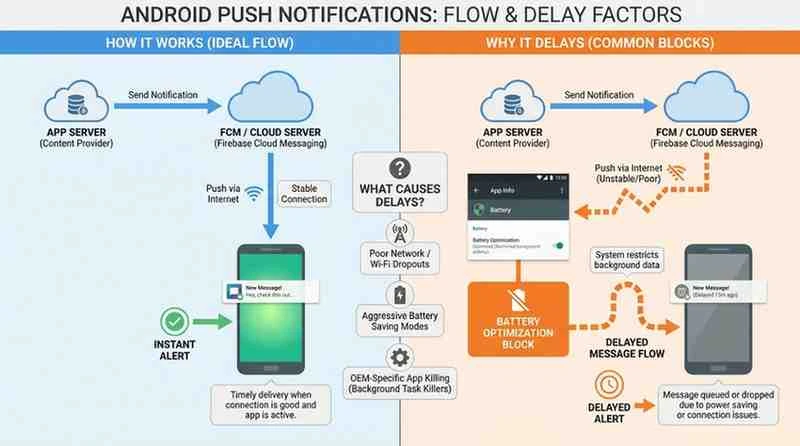
To understand why notifications get delayed, it helps to understand how they work in the first place. When someone sends you a WhatsApp message, WhatsApp’s server sends a “push notification” to Google’s Firebase Cloud Messaging (FCM) service. FCM then delivers that notification to your Android device in real time — as long as your device is awake and connected.
Here’s the catch: Android is designed to aggressively manage battery and background activity. When your phone enters a low-power state or restricts background data for an app, FCM can’t reach it. The notification sits in a queue until your phone wakes up, opens the app, or relaxes its restrictions. That delay — sometimes seconds, sometimes hours — is what users experience as Android notification delay.
Common Causes of Android Notification Delay
Understanding the root cause is the first step toward a fix. Here are the most common culprits behind delayed notifications on Android.
1. Battery Saver Mode
Battery Saver is one of the most aggressive notification killers on Android. When enabled — either manually or automatically when your battery drops below a threshold — it restricts background app activity, limits location access, and reduces syncing. Apps that rely on background connections to receive push notifications are particularly affected.
2. Data Saver Mode
Data Saver restricts how apps use mobile data in the background. If an app isn’t whitelisted, it can’t maintain a background connection to receive push notifications when you’re on mobile data. This is a very common cause of WhatsApp and Gmail notifications being delayed on cellular networks.
3. Adaptive Battery
Adaptive Battery is an AI-powered Android feature (available on Android 9 and later) that learns your app usage patterns and restricts background activity for apps you rarely use. If you don’t open an app for a few days, Adaptive Battery may limit it from receiving notifications in the background — even if you check it regularly.
4. Background App Restrictions
Individual apps can be put under “Restricted” background usage, preventing them from running any background processes. This is different from general battery optimization — it’s a per-app setting that completely blocks background activity, including receiving push notifications.
5. Adaptive Connectivity
On newer Android devices, Adaptive Connectivity automatically switches between Wi-Fi, mobile data, and even disconnects from weaker networks to save power. These connection drops — even brief ones — can interrupt the persistent connection FCM needs to deliver notifications instantly.
6. Wi-Fi Power Saving Mode
When your phone is idle, Wi-Fi chips can enter a power-saving state where they disconnect from or reduce activity on the network. This is called Wi-Fi power saving mode, and it’s a frequent culprit for notifications being delayed when connected to Wi-Fi.
7. Force-Stopped Apps
If you or your phone’s system has force-stopped an app, it cannot receive push notifications until you manually reopen it. Force-stopped apps are completely excluded from Android’s notification delivery system.
8. Samsung Sleeping Apps (One UI)
Samsung’s One UI has an aggressive “App sleeping” feature that places infrequently used apps into a deep sleep state. Sleeping apps have their background activity completely suspended — meaning no notifications. Samsung also has a secondary tier called “Deep sleeping apps” which is even more restrictive.
9. App Cache Corruption
A corrupted app cache can cause erratic notification behavior. If the app’s local data is inconsistent, it may fail to establish a stable connection with its notification servers, leading to delays or missed alerts entirely.
10. Do Not Disturb (DND) Settings
This one is often overlooked. If Do Not Disturb is enabled — either manually or through automatic schedules — notifications may be silently blocked or queued until DND turns off. Many users forget they’ve set DND schedules that run during work hours or overnight.
11. Outdated Apps or System Software
An outdated app may have bugs affecting its notification handling. Similarly, outdated Android system software may have known issues with push notification delivery that have since been patched.
How to Fix Android Notification Delay: Step-by-Step Solutions
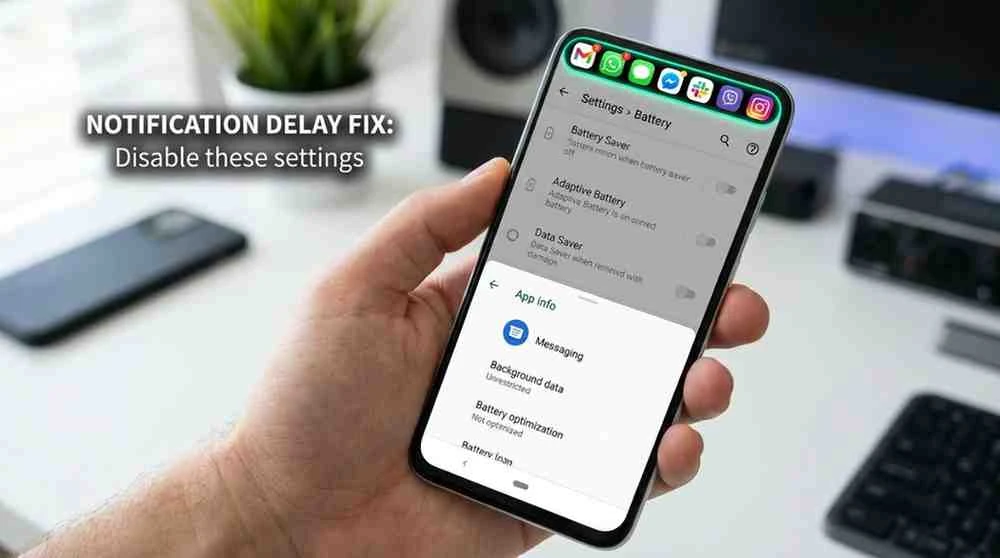
Now let’s get into the actionable fixes. Work through these in order, testing your notifications after each step.
Fix 1: Disable Battery Saver
On stock Android / Pixel:
- Open Settings → Battery
- Tap Battery Saver
- Toggle it Off
- If you want it to turn on automatically, set a higher threshold (e.g., 15%) so it doesn’t activate too early
On Samsung (One UI):
- Go to Settings → Battery and device care → Battery
- Select Power saving
- Turn it Off
Fix 2: Turn Off Data Saver
- Open Settings → Network & internet (or Connections on Samsung)
- Tap Data Saver
- Toggle Data Saver Off, or tap Unrestricted data to whitelist specific apps
Whitelisting critical apps like WhatsApp, Gmail, and banking apps while keeping Data Saver on for other apps is a smart compromise.
Fix 3: Allow Background Data Usage for Apps
- Go to Settings → Apps
- Select the app with delayed notifications
- Tap Mobile data & Wi-Fi (or Data usage)
- Enable Background data
- Also enable Unrestricted data usage if available
Repeat this for every app that’s experiencing notification delays.
Fix 4: Remove Battery Optimization Restrictions
- Go to Settings → Apps → select the app
- Tap Battery (or App battery usage)
- Select Unrestricted (not “Optimized” or “Restricted”)
This allows the app to use battery in the background without restrictions, which is essential for real-time notification delivery.
Fix 5: Disable Adaptive Battery
- Open Settings → Battery
- Tap Adaptive Battery (or Adaptive preferences)
- Toggle Adaptive Battery Off
Note: Disabling Adaptive Battery will allow all apps to use background resources freely, which may slightly reduce battery life. For most users, the trade-off is worth it.
Fix 6: Disable Wi-Fi Power Saving Mode
On stock Android:
- Go to Settings → Network & internet → Wi-Fi
- Tap the gear icon next to your connected network
- Look for Advanced → Keep Wi-Fi on during sleep → set to Always
On Samsung:
- Go to Settings → Connections → Wi-Fi
- Tap the three-dot menu → Advanced
- Disable Switch to mobile data and Wi-Fi power saving mode if available
Fix 7: Reset App Preferences
Resetting app preferences restores default settings for all apps, including notification permissions, background data settings, and default apps. It doesn’t delete app data.
- Open Settings → Apps (or Application Manager)
- Tap the three-dot menu → Reset app preferences
- Confirm and restart your device
After resetting, check notification and background permissions for critical apps and re-enable them.
Fix 8: Clear App Cache
- Go to Settings → Apps → select the problematic app
- Tap Storage & cache
- Tap Clear cache
Do not tap “Clear data” unless you’re prepared to log back in — that erases all local app data.
Fix 9: Update Android Apps
Outdated apps can have notification bugs. Open the Google Play Store, tap your profile icon → Manage apps & device → Updates available, and update all apps, especially messaging and communication apps.
Fix 10: Check and Adjust Do Not Disturb Settings
- Go to Settings → Sound → Do Not Disturb
- Check for any active schedules under Schedules
- Make sure critical apps are listed under Exceptions → Apps
- Disable any schedules you don’t need
Fix 11: Restart Your Device
A fresh restart clears RAM, resets network connections, and restarts background services including Google Play Services — which handles FCM push notification delivery. If you haven’t restarted in days, do it now.
Android Notification Delay on Samsung Devices
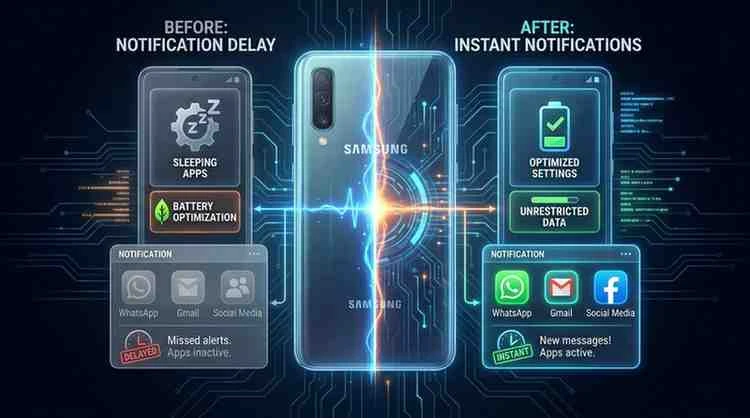
Samsung’s One UI is one of the most customized Android skins, and it introduces several notification-killing features beyond stock Android.
Samsung App Sleeping
Samsung automatically puts apps you haven’t used recently into “sleeping” or “deep sleeping” states. These apps receive zero background activity — including notifications.
To remove an app from sleeping:
- Go to Settings → Battery and device care → Battery
- Tap Background usage limits
- Under Sleeping apps or Deep sleeping apps, swipe left on the app and tap Remove
To prevent apps from being added automatically:
- Toggle off Add unused apps to sleep under the same Background usage limits menu
Samsung Background Usage Limits
Samsung also has a general “Background usage limits” system that restricts background activity beyond Google’s standard controls. Always check this menu for critical apps and ensure they’re not listed.
One UI Battery Management Tips
- Avoid using Maximum power saving mode unless absolutely necessary
- Keep your most-used messaging apps in the Favorites section of the home screen — Samsung prioritizes resources for apps you use frequently
- Disable Adaptive power saving if you’re consistently experiencing notification delays
Android Notification Delay on Pixel Phones
Google Pixel devices run stock Android, so they don’t have Samsung’s sleeping apps issue — but they have their own quirks.
Adaptive Connectivity on Pixel
Pixel phones have an “Adaptive Connectivity” feature that automatically adjusts Wi-Fi and mobile data usage to save battery. When it switches connections or drops to a lower-power state, it can briefly interrupt FCM connections.
To disable Adaptive Connectivity:
- Go to Settings → Network & internet → Adaptive Connectivity
- Toggle it Off
Google Play Services Troubleshooting on Pixel
FCM notifications are routed through Google Play Services. If Play Services is acting up, all push notifications across all apps may be delayed.
To restart Play Services:
- Go to Settings → Apps → show system apps → Google Play Services
- Tap Force Stop, then reopen an app that should receive notifications to trigger a restart
You can also clear the cache for Google Play Services without clearing data.
Pixel-Specific: Check Battery Unrestricted Status
Pixel’s Adaptive Battery is especially aggressive. Go to Settings → Apps → each critical app → Battery → set to Unrestricted for apps you need instant notifications from.
Real-Life Troubleshooting Scenarios
Scenario 1: WhatsApp Messages Arriving Late
Likely cause: Background data restriction + Battery Saver on mobile network Fix: Allow unrestricted background data for WhatsApp → disable Data Saver or whitelist WhatsApp → set battery usage to Unrestricted
Scenario 2: Gmail Notifications Showing Up Hours Later
Likely cause: Adaptive Battery limiting Gmail’s sync frequency Fix: Remove Gmail from any battery optimization list → set battery to Unrestricted → go to Gmail Settings → ensure “Sync Gmail” is enabled
Scenario 3: Missing Work Calendar Alerts
Likely cause: Do Not Disturb schedule active during work hours + app sleeping Fix: Add calendar app to DND exceptions → check Samsung sleeping apps → ensure calendar sync is set to real-time
Scenario 4: Banking OTP Arriving Too Late
Likely cause: App was force-stopped or deeply restricted Fix: Never force-stop banking apps manually → remove from Samsung sleeping apps → set background data to unrestricted → set battery to unrestricted
This is especially critical since delayed OTPs can lock you out of transactions entirely.
Best Practices to Prevent Android Notification Delays
Once you’ve fixed the immediate issue, here’s how to prevent it from coming back:
App Management:
- Set battery usage to “Unrestricted” for your top 5–10 most critical apps
- Never force-stop apps you need real-time notifications from
- Regularly check Samsung’s “Sleeping apps” list and remove additions
Network Optimization:
- Keep a stable Wi-Fi connection at home and work
- Disable Wi-Fi power saving mode on trusted home networks
- Use 4G/5G as backup when Wi-Fi is unstable
Notification Hygiene:
- Regularly audit your notification settings — apps sometimes reset permissions after updates
- Check DND schedules after Android or One UI updates, which can re-enable old schedules
- Use “Persistent notification” settings for critical apps where available
Battery Management Balance:
- Keep Battery Saver off unless your battery is critically low
- Use Adaptive Battery selectively — disable it for communication apps if needed
- Consider charging habits over aggressive power restrictions as a better long-term strategy
Pros & Cons: Aggressive Battery Optimization on Android
| Feature | Pros | Cons |
|---|---|---|
| Battery Saver | Extends battery life significantly | Delays or blocks background notifications |
| Adaptive Battery | Intelligently learns usage patterns | May restrict apps you actually need |
| Data Saver | Reduces mobile data consumption | Blocks background data for non-whitelisted apps |
| App Sleeping (Samsung) | Frees RAM and battery for active apps | Silences notifications from sleeping apps |
| Wi-Fi Power Saving | Reduces Wi-Fi chip energy use | Can break FCM persistent connection |
| Background Restrictions | Prevents battery drain from unused apps | Stops notification delivery entirely |
| Adaptive Connectivity | Optimizes network switching | Brief drops can delay push notifications |
Bottom line: These features are useful when applied selectively, but applying them globally across all apps will inevitably cause notification delays for critical communication apps.
Frequently Asked Questions
Why are my Android notifications delayed?
Android notifications are most commonly delayed due to Battery Saver mode, Data Saver, Adaptive Battery, or background app restrictions. These features limit an app’s ability to maintain a background connection with Google’s Firebase Cloud Messaging (FCM) service, which is responsible for delivering push notifications. Disabling or adjusting these settings for specific apps typically resolves the issue.
What causes delayed notifications on Android?
The main causes include: Battery Saver limiting background activity, Data Saver blocking background data, Adaptive Battery restricting rarely-opened apps, Wi-Fi power saving mode breaking network connections, Samsung’s app sleeping feature, force-stopped apps, and Do Not Disturb schedules silencing alerts.
How do I fix delayed notifications on Android?
Start by setting each problem app’s battery usage to “Unrestricted” in Settings → Apps → [App name] → Battery. Then disable Data Saver or whitelist the app, turn off Battery Saver, and check Do Not Disturb settings. On Samsung, check the Background usage limits menu and remove apps from the sleeping list.
Why are notifications not coming through on my Android phone?
If notifications aren’t coming through at all (not just delayed), the app may have been force-stopped, removed from notification permissions, or placed in Samsung’s “Deep sleeping apps” category. Check notification permissions in Settings → Apps → [App] → Notifications, and ensure the app has full notification access.
How do I make Android notifications arrive instantly?
To ensure instant notifications: set the app’s battery usage to Unrestricted, allow unrestricted background data, disable Adaptive Battery, turn off Wi-Fi power saving mode, and make sure the app isn’t in Samsung’s sleeping apps list. For critical apps, avoid using Battery Saver mode unless absolutely necessary.
Why are Samsung notifications delayed?
Samsung One UI’s aggressive battery management — including App sleeping, Deep sleeping apps, Background usage limits, and Power saving mode — commonly causes notification delays. Go to Settings → Battery and device care → Battery → Background usage limits and remove affected apps from the sleeping list.
Why are Pixel notifications delayed?
On Pixel devices, Adaptive Battery and Adaptive Connectivity are the most common causes. Adaptive Connectivity can drop network connections to save power, interrupting FCM. Disable both features in Settings, and set critical apps’ battery usage to “Unrestricted.”
What is Adaptive Notifications on Android?
Adaptive Notifications is a feature in some Android versions that learns which notifications you interact with and may suppress or summarize ones you consistently ignore. While useful for reducing notification overload, it can occasionally suppress notifications you actually want. Check under Settings → Notifications → Adaptive Notifications to adjust or disable it.
What is a persistent notification on Android?
A persistent notification is one that cannot be swiped away and stays visible in the notification bar. Apps like music players, navigation apps, and services running in the foreground use persistent notifications to tell Android that they’re actively running — which prevents the system from killing them in the background. Some apps allow you to enable a persistent notification to keep them active for better notification reliability.
Conclusion
Android notification delay is a fixable problem — not a phone defect. The culprit is almost always one (or several) of Android’s battery and data management features working a little too hard to save resources. Once you understand what’s restricting your apps, the fixes are straightforward and take just a few minutes to implement.
Here’s your quick-fix checklist:
- Set critical apps to Unrestricted battery usage
- Disable or whitelist apps in Data Saver
- Turn off Battery Saver unless critically needed
- Disable Adaptive Battery for communication apps
- On Samsung: remove apps from Sleeping apps and Background usage limits
- On Pixel: disable Adaptive Connectivity
- Check Do Not Disturb schedules and exceptions
- Clear app cache for problematic apps
- Keep apps and Android updated
Proper Android notification settings aren’t just about convenience — they’re about staying connected when it matters most. Whether it’s a business message, a medical alert, or a time-sensitive OTP, your notifications should reach you the moment they’re sent.
Found this guide helpful? Bookmark it for future reference, share it with someone struggling with Android notification problems, or drop a comment below with your device model and the fix that worked for you. Your experience might help someone else solve the same issue.