Part 1: Why I Couldn’t Completely Uninstall Some Programs
I used to think uninstalling software on Windows was as simple as clicking the Uninstall button. However, after removing several applications, I noticed that many of them were not actually gone. Some still appeared in the Start menu. Others left folders inside Program Files or AppData. In a few cases, Windows even refused to reinstall the same software because leftover files were still on my computer. After looking into the problem, I discovered that many applications don’t completely uninstall themselves.
Instead, they leave behind registry entries, startup tasks, temporary files, browser extensions, and other hidden components. These leftovers may not seem important at first, but over time they waste storage, create software conflicts, and make Windows harder to maintain.
Part 2: What Is IObit Uninstaller?
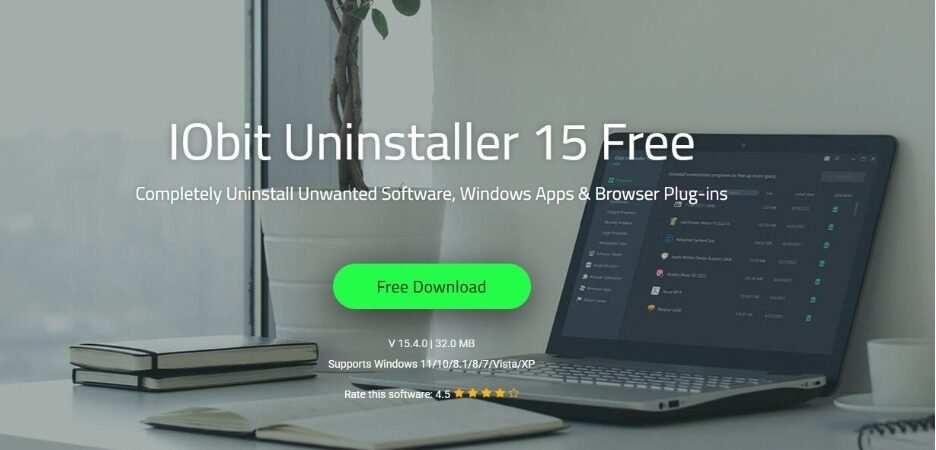
To solve this problem, I started using IObit Uninstaller. Unlike the default Windows uninstaller, it doesn’t stop after removing the main program. It performs a deeper scan to find everything the application leaves behind, including leftover files, folders, registry entries, startup items, shortcuts, and browser extensions. For me, the biggest advantage is that it helps me completely uninstall programs instead of simply removing the main executable.
Whether I’m uninstalling a large application, bundled software, or an unwanted browser extension, IObit Uninstaller makes the cleanup much more thorough.
Part 3: Features That Helped Me Completely Uninstall Programs
After using this uninstaller for Windows for a while, these became the features I relied on most.
- Complete Program Removal
After the normal uninstall finishes, IObit Uninstaller automatically searches for leftover files, registry entries, temporary files, and invalid shortcuts that Windows usually misses.
- Force Uninstall
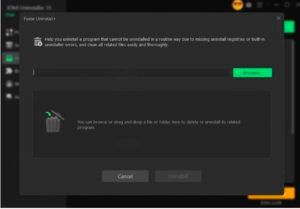
Sometimes Windows reports errors like “Uninstaller not found” or refuses to remove damaged software. Force Uninstall scans the remaining installation directory and removes everything related to the program, making it much easier to uninstall stubborn software completely.
- Browser Extension Remover
I also like that I can remove extensions from Chrome, Edge, and Firefox in one place instead of opening every browser separately. This makes it easier to remove unwanted extensions that continue running in the background.
- Install Monitor
Another useful feature is Install Monitor. It records changes made during software installation, including registry modifications, startup items, services, and created files. Later, when I uninstall the software, those records help ensure a more complete cleanup.
- Software Health
Software Health helps me remove installation packages, manage software permissions, clean invalid entries, and reduce unnecessary clutter that builds up over time.
Part 4: How I Completely Uninstall Programs with IObit Uninstaller
Using IObit Uninstaller to remove stubborn programs is actually very simple:
- First, I download and install the latest version of IObit Uninstaller.
 2
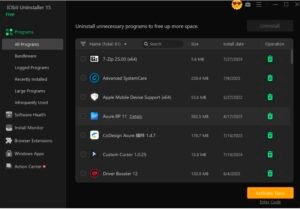
2 - After launching the program, I open the Programs section, where all installed applications are listed.
- Next, I select the program I want to remove and click Uninstall.
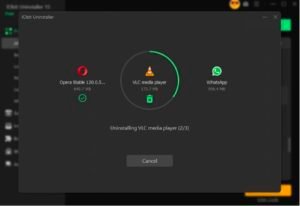
- 4. Once the standard uninstall finishes, IObit Uninstaller automatically scans my computer for leftover folders, registry entries, temporary files, shortcuts, and other hidden traces. I simply confirm the results, and the software removes everything in one process.
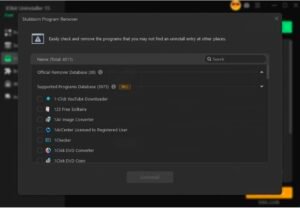
When a program refuses to uninstall normally, I switch to Force Uninstall. I either select the application from the list or drag its installation folder into the window. The program then scans for every remaining component before removing it completely.
Conclusion
Before using IObit Uninstaller, I assumed Windows removed applications completely. Later, I realized that many programs leave behind hidden files, registry entries, startup items, and browser extensions even after they appear to be uninstalled. For me, IObit Uninstaller has made software removal much cleaner and more reliable. Instead of manually searching for leftover folders and registry entries, I can completely uninstall unwanted programs with just a few clicks.
If you’re trying to free up disk space, fix software conflicts, or simply keep Windows organized, performing a complete uninstall is well worth the extra step, and IObit Uninstaller makes that process much easier.